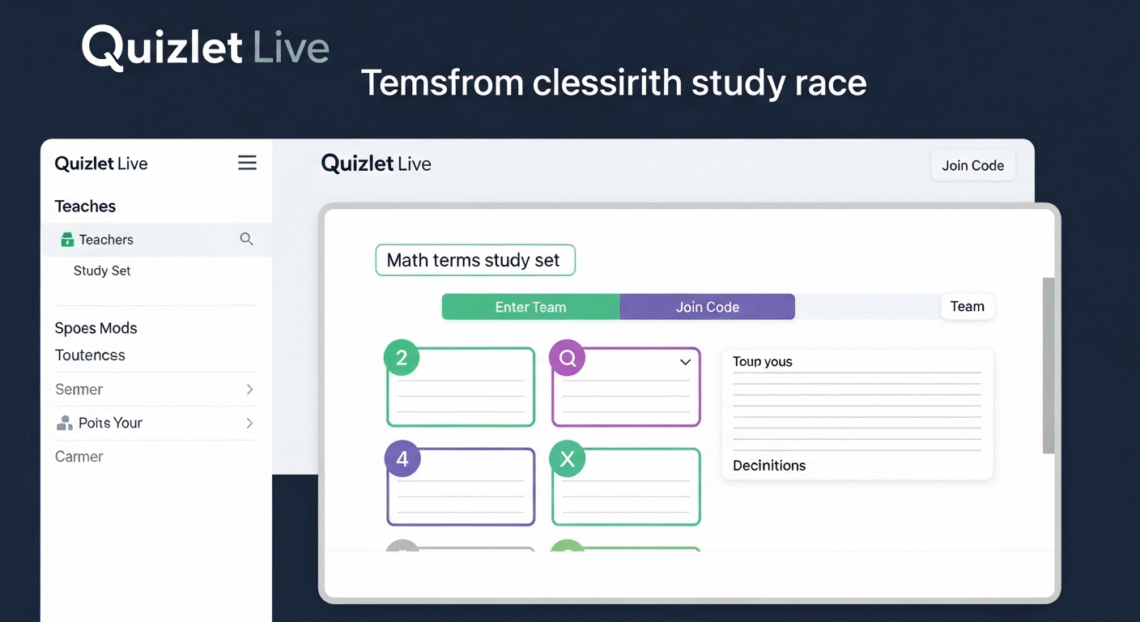
Quizlet Live is a fun, fast study game teachers and students love. It turns simple flashcards into a team race. Your class works together to match terms and definitions. The game is quick to set up. You only need a study set and a join code. Students type that code to join their team. Teachers watch progress on a clear dashboard. Quizlet Live helps students remember facts better. It makes review lively and social. Many teachers use it for test review and warm-ups. In this guide I will explain how Quizlet Live works. I will show step-by-step how to join. You will also get tips, fixes, and real examples to use right away.
What is Quizlet Live?
Quizlet Live is a teamwork game built from flashcards. It uses a study set to make matching rounds. Teams race to match all correct pairs in a limited time. The game checks answers and gives feedback fast. Teachers get a live view of each team’s score. Students play on phones, tablets, or laptops. The game keeps play fair by reshuffling answers each round. Quizlet Live makes studying feel like play. It is great for review before quizzes and tests. Students who play stay more engaged and remember for longer. Teachers use Quizlet Live for quick checks of understanding. It also helps shy students join group learning easily.
How Quizlet Live works — the basics
Quizlet Live turns a study set into a live team challenge. The app pairs students into small teams. Each team must find matching terms and definitions. When teammates choose the same correct answer, the pair locks in. Wrong matches slow the team down. The game has several rounds with new mixes of answers. The teacher controls the game flow and timing. A progress bar shows which team leads. At the end, Quizlet Live shows winning teams and scores. After play, teachers can review which terms caused trouble. This helps spot common mistakes fast. The game is easy for students and quick for teachers to run.
How to join Quizlet Live — step-by-step
Joining Quizlet Live is simple for students. First, the teacher starts a Quizlet Live game. The teacher shows a join code on the board or shares it online. Students open a browser or the Quizlet app. They go to the join page and enter the code. Some teachers ask for a name or nickname. Then students are placed into teams. The game starts when the teacher clicks “Play.” Students see their team color and who their teammates are. They then begin matching terms. If a student loses connection, they can rejoin with the same join code. The process is quick and easy for most classrooms.
Finding and using a Quizlet Live code
A Quizlet Live code is the key to play. Teachers generate this code when they start a Live session. The code shows on the teacher’s screen. Students type the code at quizlet.com/join or in the app. Codes are short and easy to read. Teachers can share codes by projecting the code or posting it in chat. If a student mistypes the code, they cannot join. Some classrooms use a single code for rotation groups. Others make a fresh code each class. Always double-check the code before students enter it. This prevents confusion and speeds the start of play.
Tips for teachers using Quizlet Live
Teachers can get more value from Quizlet Live with small habits. First, choose clear study sets. Use short terms and simple definitions. Teach students how to use nicknames for team clarity. Time the rounds to keep energy high. Pause to discuss tricky terms between rounds. Use the teacher dashboard to see error trends. If many teams miss one fact, review it right away. Mix Quizlet Live with other activities to keep variety. Keep rules short and clear so all students know how to play. These small steps make the game smoother and more useful for learning.
Tips for students in Quizlet Live
Students can play smarter with a few simple habits. Read the term carefully before choosing. Talk quickly but clearly with teammates. Share screen time if several devices are available. Stay calm if a wrong match happens. Use rejoin codes if you lose connection. Try to learn from feedback after each round. Practice with small study sets first. Bring focus to words you do not know. Quizlet Live rewards teamwork and communication. When you use good strategies, you learn faster and have more fun. Treat the game like a short, focused study session.
Common problems and how to fix them
Quizlet Live can run into tech hiccups. Wi-Fi drops are the most common issue. Ask students to refresh their browser or app. Rejoining with the same code usually works. If a student sees the wrong set, check the teacher’s chosen set. Nickname mixups can slow play. Ask students to use a consistent naming rule. If many students type wrong answers, pause and explain the tricky term. For broken links, restart the game to create a new code. Keep an eye on device battery life before class. Small checks avoid big delays and keep learning on track.
Best practices for fair play and safety
Fair play keeps Quizlet Live useful and safe. Set expectations about honesty before the game. Ask students to avoid looking up answers online. Use the game to build teamwork and respect. Protect student privacy by avoiding last names or sensitive info in nicknames. Use classroom devices or school accounts when possible. If you record class screens, follow your school rules. Always review behavior after the game if problems appear. Praise teams for good communication and fair effort. Creating a positive environment will keep students excited and focused.
Using Quizlet Live for different subjects
Quizlet Live works for many topics and ages. Use it for spelling in language arts. Try it for vocab in foreign language classes. Practice math terms, science facts, or historical dates. Make sets for geography, like country capitals. Use short, clear definitions for fast play. For younger grades, use image-based sets with simple words. For older students, include more detailed concepts. The game adapts to any subject with clear terms. Changing the set is quick and lets teachers tailor play to current lessons.
Making your own Quizlet sets for Live games
Creating good study sets helps the game shine. Start with key terms from your lesson. Write clear definitions that match student reading level. Add example sentences or pictures when helpful. Keep each flashcard focused on one idea. Limit a Live game set to the most important 20–40 cards. Too many cards can slow rounds and confuse teams. Test the set yourself to catch errors. Share the set link with students who want extra practice. A well-crafted set boosts learning and makes Quizlet Live more fun for everyone.
Measuring learning with Quizlet Live
Use Quizlet Live as a quick formative check. The teacher dashboard shows terms that caused the most misses. Note which teams finish fastest. Review error patterns after play. Use those patterns to plan review lessons. You can export class results for records and reflection. A short debrief after each game helps solidify learning. Ask students what surprised them. Use the game data to inform your next quiz or homework choices. When used regularly, Quizlet Live gives a clear picture of class strengths and gaps.
Alternatives and complements to Quizlet Live
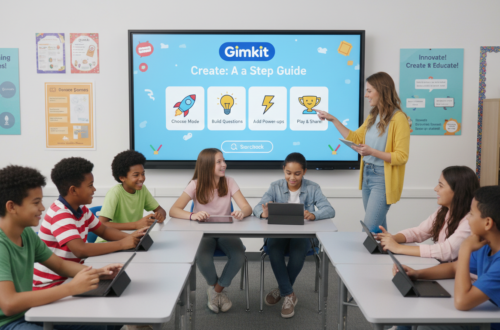
Quizlet Live is great but not the only tool. Other platforms offer similar live games. Some focus more on single-player practice. Others include teacher controls or richer analytics. Use a mix of tools to keep variety in class. Pair Quizlet Live with exit tickets or short quizzes. Use homework sets for practice before live play. Try Kahoot, Gimkit, or Blooket for game variety. Each tool has strengths and quirks. Choose the tool that fits your lesson goals and class tech access. Mixing tools keeps students curious and motivated.
A real classroom example
A middle school teacher I know used Quizlet Live before a science test. She picked 30 key terms from the unit. Students played two rounds to warm up. Teams that lost used the dashboard to see missed terms. She paused and reviewed three hard words. The next class, quiz scores rose and students reported less test anxiety. The teacher noted that teamwork helped shy students speak up. This example shows how one short game can change class energy. Small, repeated uses like this build confidence and competence over time.
Conclusion
Quizlet Live is a simple way to make study time lively, social, and effective. The game uses study sets and a join code to bring teams together. Teachers get fast feedback and students stay engaged. Start small with one Live round and one clear set. Use the tips in this guide to avoid common tech issues. Share a short debrief after each game to lock in learning. If you want to try it now, ask your teacher for a join code and give the game one try. You might find studying feels easier and more fun with Quizlet Live.
FAQs
Below are six clear and helpful answers to common questions about Quizlet Live. Each answer is simple and short. They will help teachers and students get started fast.
FAQ 1 — How do I join Quizlet Live with a code?
To join Quizlet Live with a code, open quizlet.com/join or the Quizlet app. Then type the code the teacher shows. Use a simple nickname if asked. After entering the code, you will be placed on a team. The teacher will start the game when most students join. If you get an error, retype the code carefully. Check your internet if joins fail. Your teacher can restart the game and make a new code if many students still have issues. Practice this once and joining will feel easy.
FAQ 2 — What if I lose connection during a Quizlet Live game?
If you lose connection, try refreshing the browser first. Reopen the Quizlet app if that fails. Use the same join code to rejoin the game. The teacher can pause or wait for you to return. If rejoin fails, the teacher may start a new game with a fresh code. Keep devices charged and on stable Wi-Fi to reduce problems. It helps to have a backup device or partner in the team. Most tech issues are quick fixes and do not stop learning for long.
FAQ 3 — Can Quizlet Live work on phones and tablets?
Yes. Quizlet Live runs on phones and tablets. It also works on laptops. Use a modern browser or the official Quizlet app. Make sure your device has a stable internet connection. Devices with low battery can disconnect, so charge before class. Smaller screens still show the game clearly. Students type the join code and follow team prompts. Teachers can manage the game from any device. Using mixed devices is common and usually works smoothly.
FAQ 4 — How many students can play Quizlet Live at once?
Quizlet Live supports many players in one game. Exact limits vary by account type and Quizlet updates. Typical classes with 20 to 40 students play without trouble. Teams form automatically as students join. If your class is very large, split into smaller groups or run multiple rounds. Check your school’s Quizlet account limits if you plan a big event. Teachers often run two simultaneous sessions for large rooms. Splitting classes keeps play fast and fair for everyone.
FAQ 5 — Is Quizlet Live free to use?
Quizlet Live is available in the free Quizlet plan with basic features. Some advanced features require a teacher account upgrade. Free teachers can still run many Live games. Paid plans add analytics and classroom management tools. Check your school for shared premium accounts. Many teachers use the free version effectively. If you need extra features, compare what a paid plan adds before you buy. For most classes, the free offering is a strong start.