Introduction
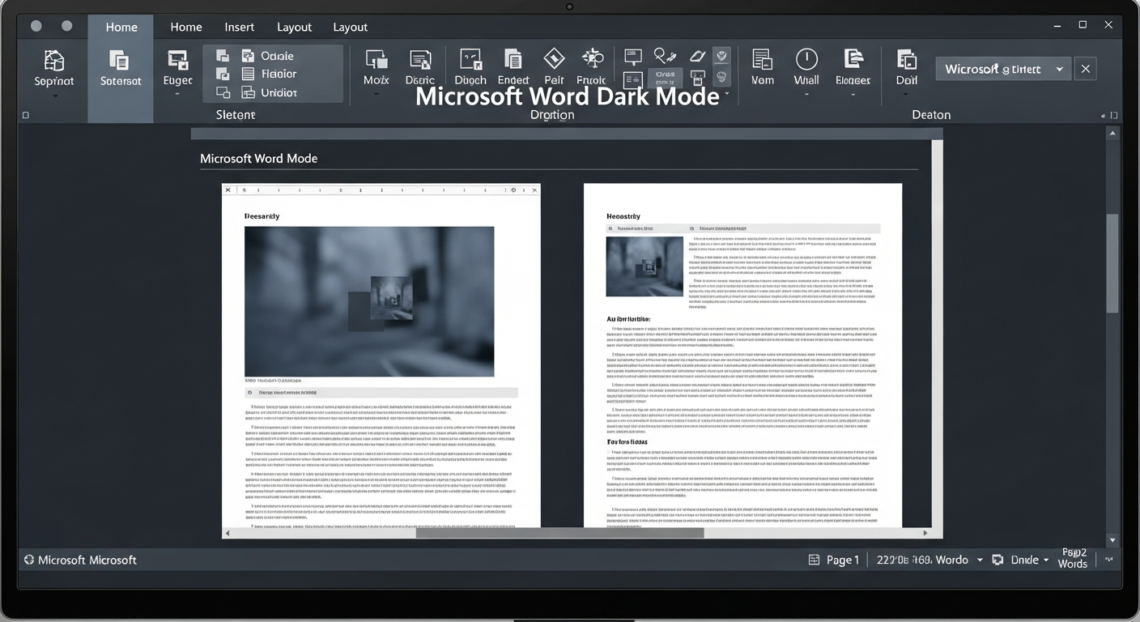
Do you spend a lot of time typing in Microsoft Word? Sometimes, bright white pages can hurt your eyes, especially at night. That’s where Microsoft Word dark mode helps. It changes the screen to darker colors, making it easier to read and less tiring for your eyes.
In this article, we’ll talk about how to make Microsoft Word dark mode work on your computer. Whether you use Windows or Mac, we’ll guide you step-by-step. We’ll also share tips on how to turn off dark mode when you want, and fix the common problem of the Microsoft Word dark mode white page. Let’s make your writing time more comfortable and fun!
What is Microsoft Word Dark Mode?
Microsoft Word dark mode is a feature that changes the color scheme from light (white background) to dark (black or gray background). This helps reduce eye strain, especially in low light. It also saves battery on laptops and looks cool!
How to Make Microsoft Word Dark Mode on Windows
If you want to turn on dark mode in Word on a Windows PC, here’s a simple way:
- Open Microsoft Word.
- Click on File at the top-left corner.
- Choose Options at the bottom.
- Select the General tab.
- Find the Personalize your copy of Microsoft Office section.
- Change the Office Theme to Black or Dark Gray.
- Click OK.
Now your Word should look dark! If you want it lighter again, follow the same steps and pick Colorful or White.
Microsoft Word Dark Mode on Mac: How to Turn It On
On a Mac, dark mode is linked to your system settings. Here’s how to enable it:
- Click the Apple menu on your Mac.
- Select System Preferences.
- Choose General.
- Find Appearance and select Dark.
When your Mac is in dark mode, Microsoft Word will switch to dark mode automatically. Easy, right?
Can You Make Microsoft Word Dark Mode Without Changing the Whole System?
If you want to use dark mode just in Word without switching your entire system to dark mode, it’s tricky. On Windows, you can change Office themes as explained. On Mac, Word follows your system’s dark mode settings, so no separate option there.
How to Turn Off Microsoft Word Dark Mode
If dark mode isn’t for you, or you want to go back to light mode, just reverse the steps:
- On Windows, go to File > Options > General, then change the theme to Colorful or White.
- On Mac, switch your system’s appearance back to Light in System Preferences.
Fixing the Microsoft Word Dark Mode White Page Problem
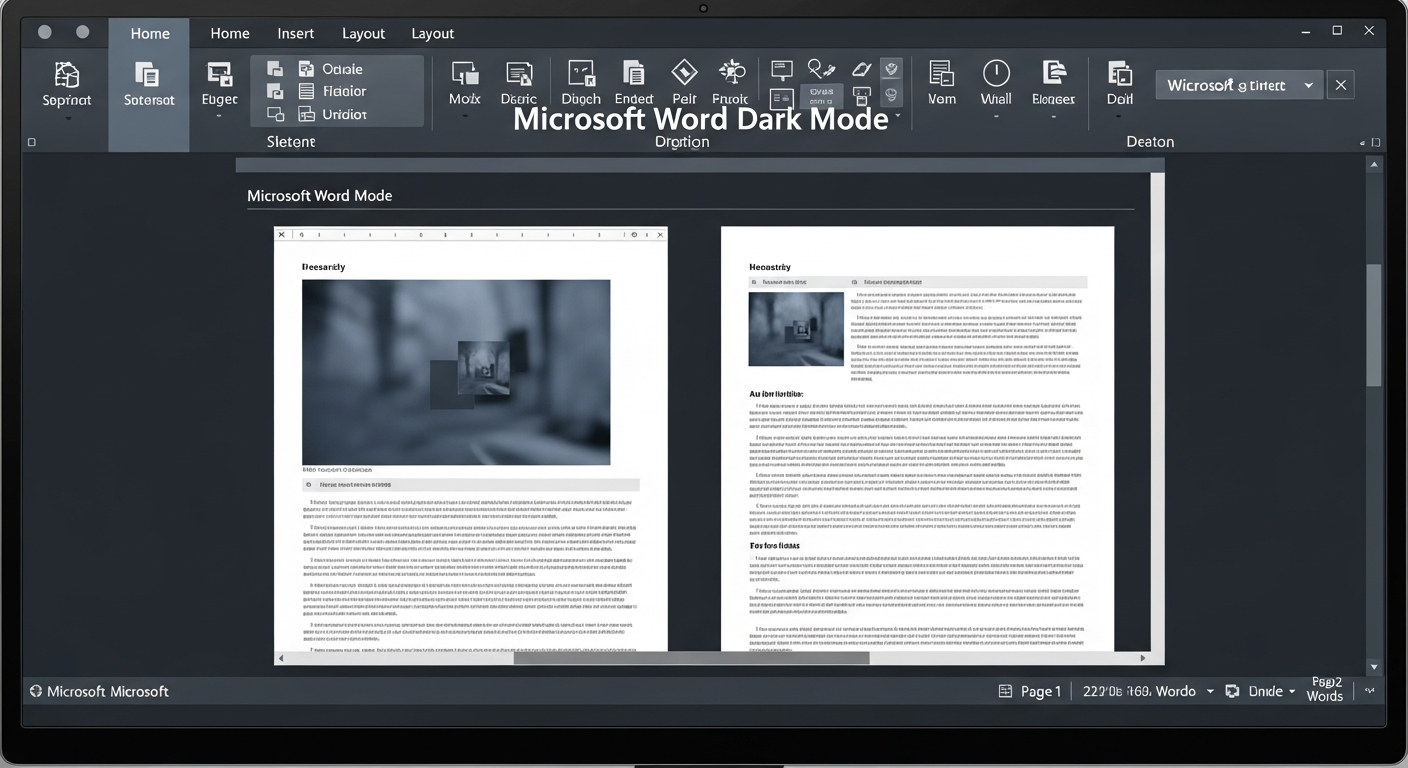
Many users see a white page in Word even after turning on dark mode. This can be annoying because the page stays bright while everything else is dark. Here’s a quick fix:
- Open Word.
- Go to File > Options > General.
- Under Personalize your copy of Microsoft Office, check Never change the document page color.
- Uncheck it if it’s checked. This lets the page turn dark too.
Note: Sometimes, the page color depends on the document’s background color. Changing it to black or dark gray helps.
Why Use Microsoft Word Dark Mode?
Using dark mode can:
- Reduce eye strain, especially at night.
- Save battery life on laptops and tablets.
- Help focus by reducing screen glare.
- Look stylish and modern.
Can You Customize Microsoft Word Dark Mode Colors?
Unfortunately, Word doesn’t let you pick custom dark mode colors. You can only choose between themes like Black, Dark Gray, or Colorful. But Microsoft often updates Office, so more options may come soon.
Troubleshooting Microsoft Word Dark Mode Issues
If dark mode isn’t working well, try these tips:
- Update Microsoft Word to the latest version.
- Restart Word or your computer.
- Check if your system supports dark mode.
- Make sure you followed the steps for your device correctly.
|
Personal Experience: How Dark Mode Helped Me Write LongerWhen I started using Microsoft Word dark mode, my eyes felt less tired during late-night work. The soft dark background made writing feel calm and helped me focus more. It’s great for students, writers, and anyone who spends hours on Word. |
Summary Table: Microsoft Word Dark Mode Quick Guide
| Feature | Windows PC | Mac |
|---|---|---|
| How to turn on dark mode | File > Options > General > Theme | System Preferences > General > Dark |
| Can you turn off dark mode? | Yes, switch theme to Colorful/White | Yes, switch system appearance to Light |
| Fix white page in dark mode | Uncheck “Never change document color” | Change system dark mode settings |
| Customizing dark mode colors | No | No |
| Does dark mode save battery? | Yes | Yes |
| Does dark mode reduce eye strain? | Yes | Yes |
FAQs About Microsoft Word Dark Mode
Open Word, go to File > Options > General, and change the Office Theme to Black or Dark Gray.
No, Word on Mac follows the system’s dark mode setting, so you must enable dark mode in your Mac’s system preferences.
Because Word separates page color from the theme. Go to Options and uncheck “Never change the document page color” to fix it.
On Windows, change the theme back to Colorful or White in Options. On Mac, switch your system back to Light mode.
Yes, using dark mode can save battery, especially on devices with OLED screens.
Currently, Word only offers preset themes like Black and Dark Gray, with no option for custom colors.
Conclusion: Try Microsoft Word Dark Mode Today!
Microsoft Word dark mode is a handy feature for anyone who writes a lot. It helps reduce eye strain, looks cool, and can save battery. Whether you use Windows or Mac, you can turn it on easily and enjoy a comfortable writing experience. Try it out today, and don’t forget to fix the white page issue if you see it. If you have questions, just ask! Happy writing in the dark!